Proximity Sensor Replacement: iPhone 13 & 13 mini
Step-by-Step Restoration Guide
Comprehensive instructions for replacing the proximity sensor on iPhone 13 and 13 mini to fix the 3-minute restart cycle while keeping Face ID functional.
⚠️ Important Warnings
- • Always disconnect the battery before internal repairs to prevent short circuits.
- • Face ID sensors are fragile; do not touch or clean the front-facing camera lenses.
- • Use the Magnetic Screw Pad to prevent 'Long Screw Damage' to the logic board.
Tools Needed
- Pentalobe P2 Screwdriver
- Y000 Tri-point Screwdriver
- Phillips #000 Screwdriver
- Suction Cup (Sucker)
- Plastic Spudger / Sticks
- Triangle Opening Paddles
- MeeFix Magnetic Screw Pad
Parts Needed
- Proximity Sensor Flex Cable
- 2x Front Screen Waterproof Seals
Step-by-Step Instructions
Remove Bottom Pentalobe Screws
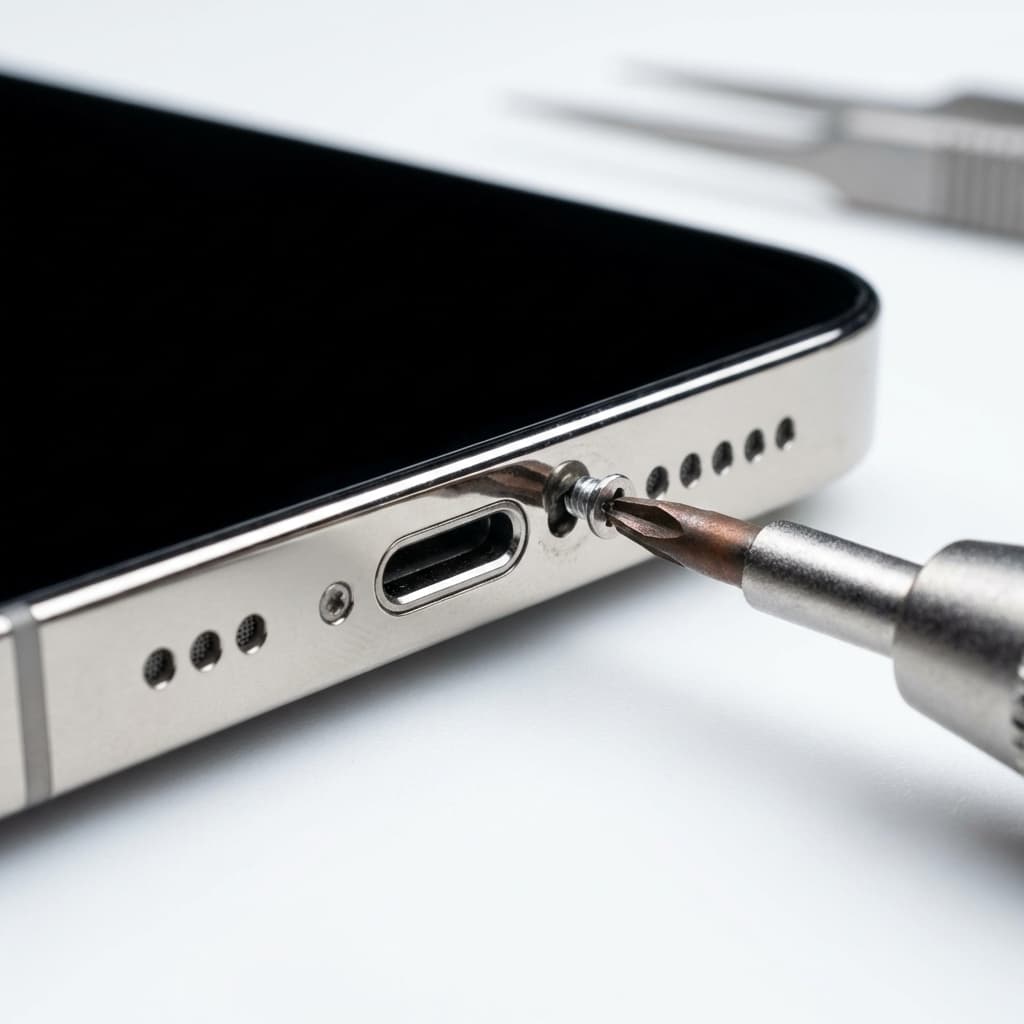
Power off your device. Use the Pentalobe P2 screwdriver to remove the two screws next to the charging port. Place them on your Magnetic Pad.
Lift and Open the Display
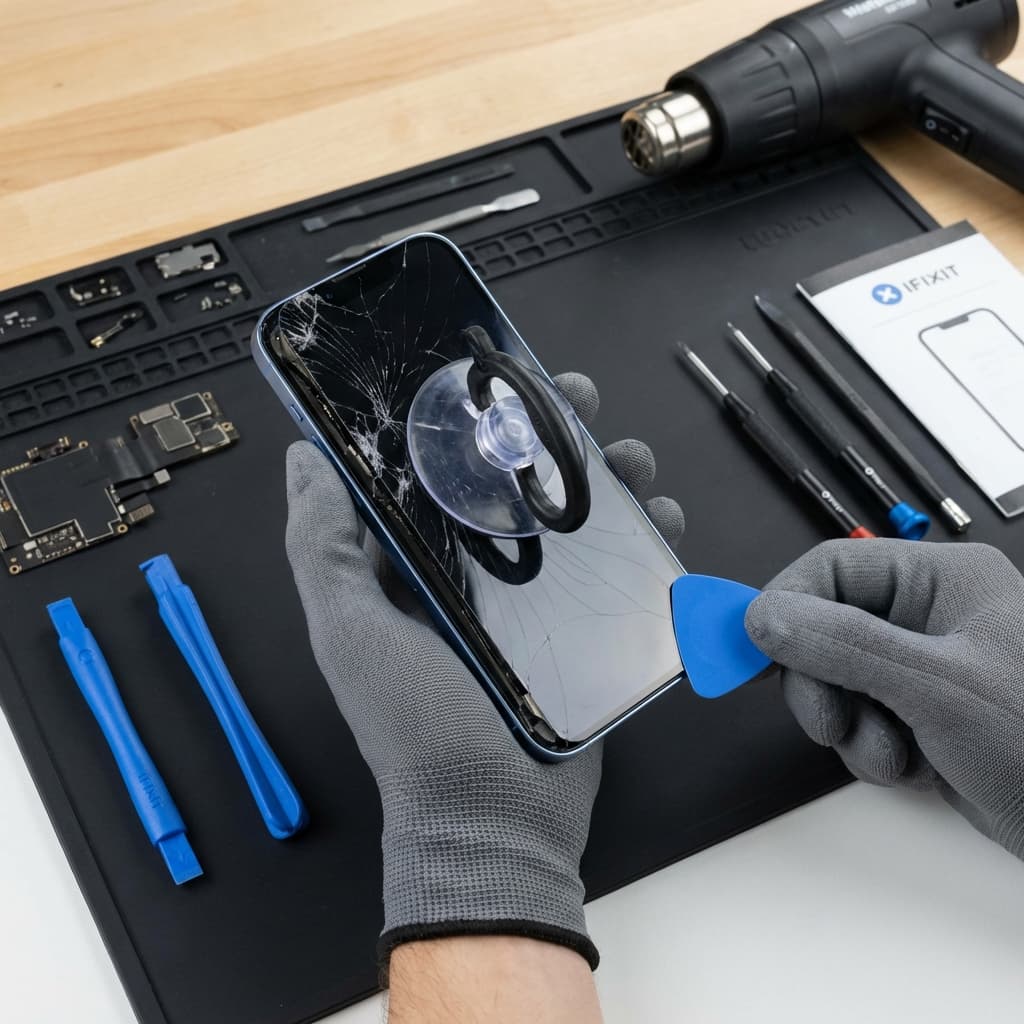
Use the sucker and triangle paddles to slice through the adhesive. Swing the display open to the left side like a book.
Do not insert the tool too deep to avoid damaging internal flex cables.
Disconnect the Battery (Critical)
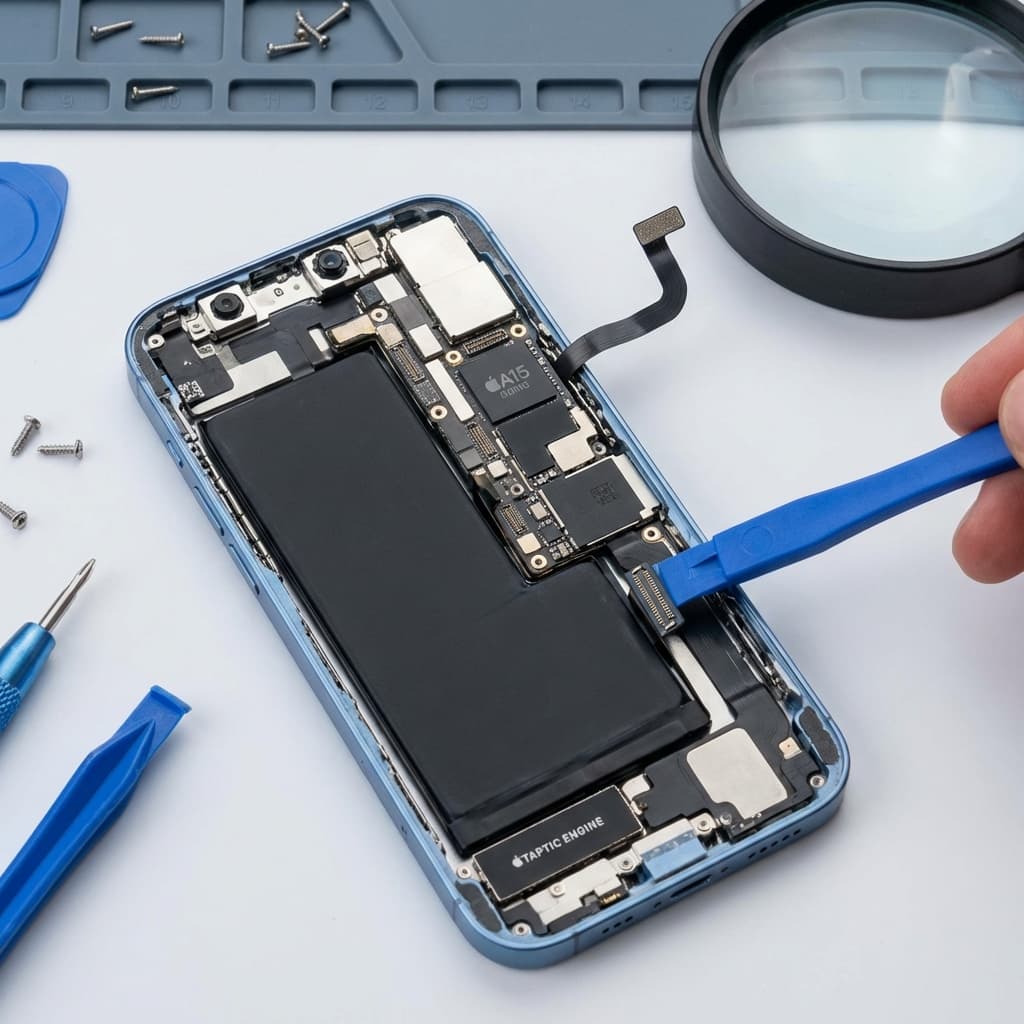
Remove the protective bracket and use a plastic stick to pop off the battery connector. This is essential to prevent permanent logic damage.
Replace the Sensor Flex
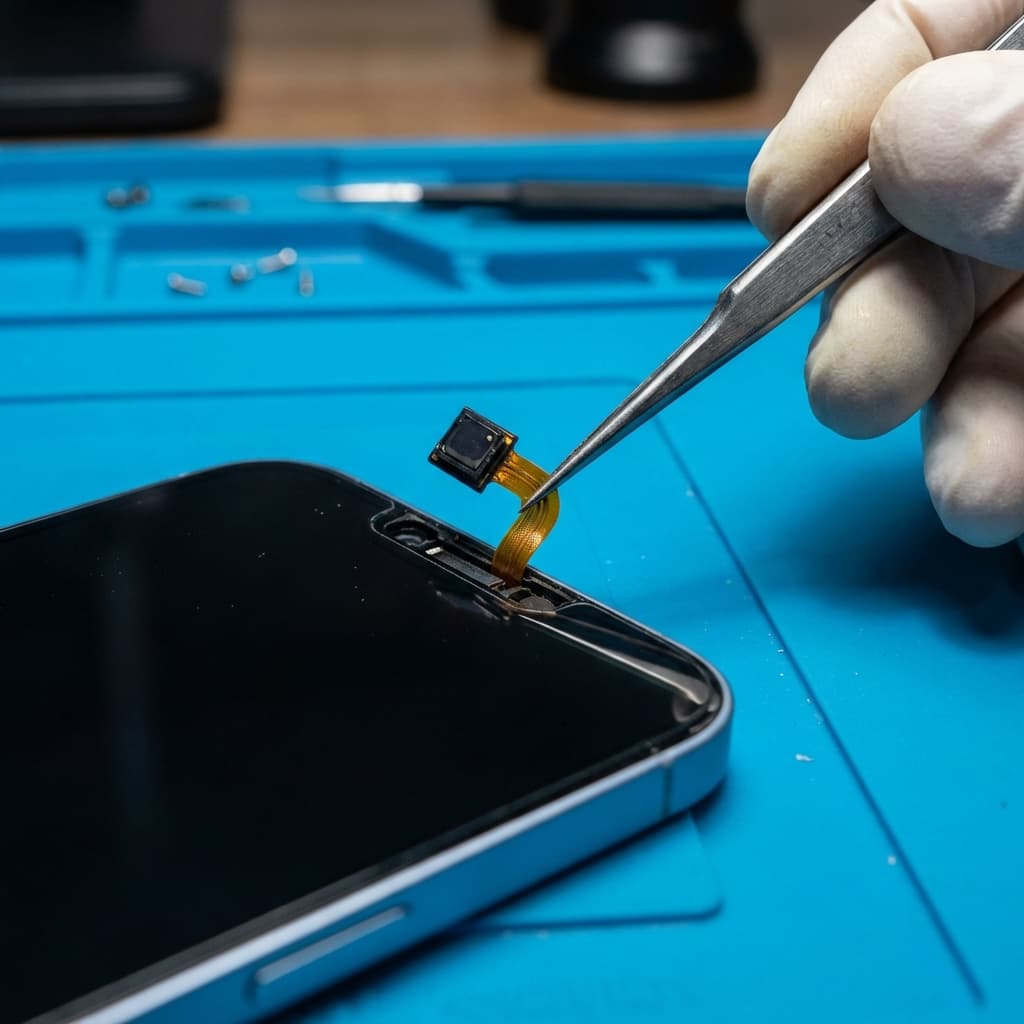
Unscrew the top assembly and carefully peel the old flex from the display. Install the new flex into the original housing.
Apply New Waterproof Seal
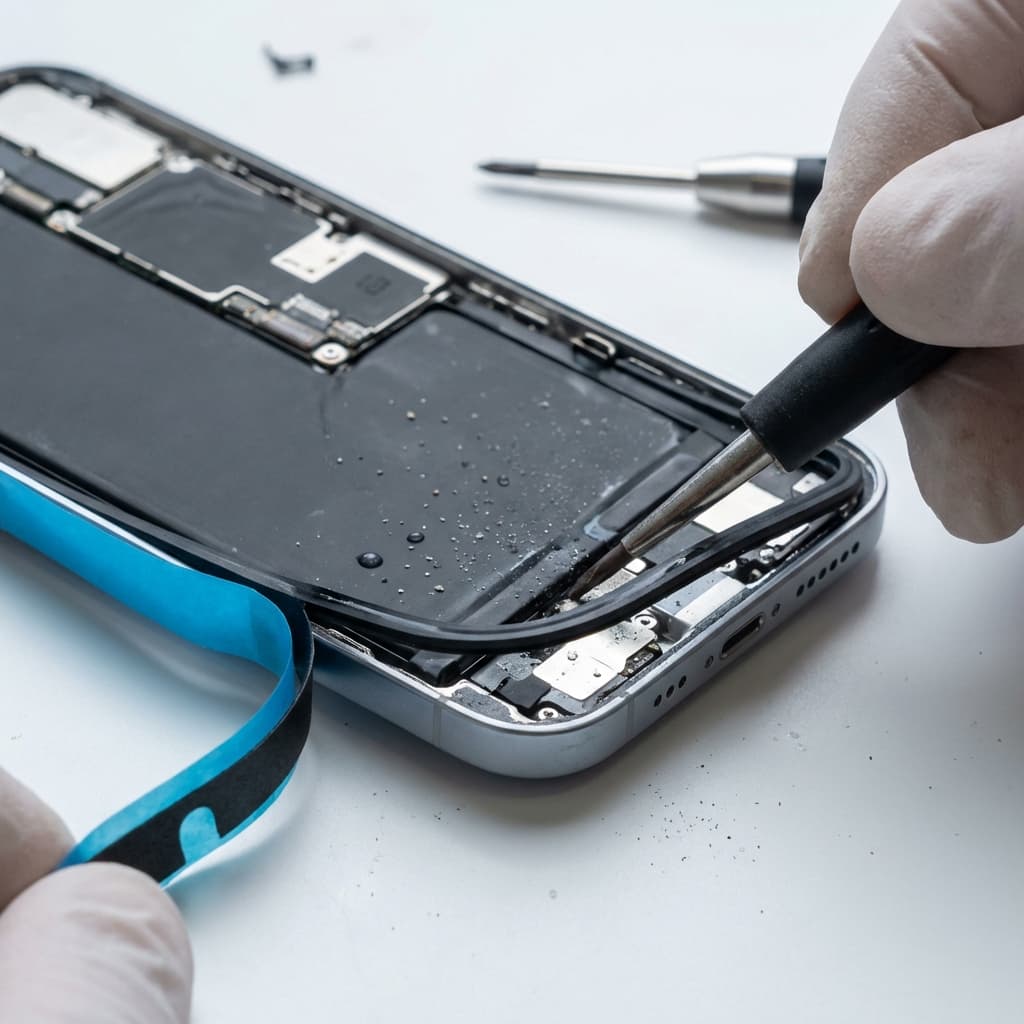
Clean the frame and apply the new seal. We provide two seals so you can have a backup if the first attempt fails.
Frequently Asked Questions
Will I lose Face ID after this repair?
No. On the iPhone 13 series, replacing this flex does not disable Face ID. Only Auto-Brightness and True Tone are affected.
Why include a Magnetic Screw Pad?
To prevent screw missing and ensure every screw goes back to its original position, avoiding motherboard damage.
Guide Info
Difficulty
MediumTotal Steps
5
Need a Fix Kit?
🇺🇸 US StockComplete repair kit with OEM-spec flex, full tool set, and magnetic organizer.
iPhone 13 KitComplete repair kit with OEM-spec flex, full tool set, and magnetic organizer.
iPhone 13 mini KitNot Sure What's Wrong?
Use our AI-powered diagnosis tool to identify the exact issue with your device.
Start Diagnosis